
https://www.xperience-group.com/news-item/sage-50-add-the-customer-order-number-to-your-customer-statements/
The steps in this guide detail how to add the Customer order number that’s on your sales order and invoice to your customer statement layouts.
To help you track customer invoices and orders in Sage 50 Accounts, you can enter an order reference or number your customer provides you, when you enter the sales order or invoice.
You can add this customer order number to your customer statement layouts.
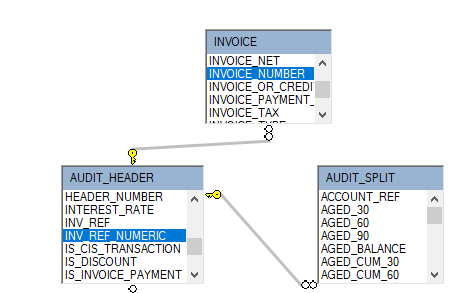
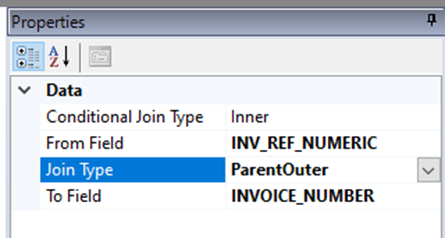
NOTE: You might need to move some of your current fields along, so that you can fit in the customer order number. You can click and drag fields left and right to do this.
You can also add a text box in the column headings for Customer Order No.
If you’d like to talk to our product experts about Sage 50 Accounting, or would like to book a demonstration, you can find more information here.
While Sage 50 can get the job done, if you’re looking for a smarter, cloud-ready accounting solution with more flexibility and modern features, it might be time to explore what Business Central Switch can do for you!
Want to learn more?