Sage 50 – Adding Attachments to Supplier Invoices an and Credit Transactions

Published: 6 October 2025

If you have documents relating to a supplier invoice or credit, in Sage 50cloud Accounts v26.3 and above, you can add them as an attachment to the transaction. You can then quickly and easily view them.

Summary

Attaching documents to your supplier invoices and credits makes it quick and easy to view any correspondence relating to the transaction.

You can attach any of the following file types to you supplier invoices and credits:

NOTE: Attachments can be up to 5mb in size.

BMP CSV
DOCX DOCM
DOC JPG
JPEG ODS
ODT PDF
PNG RTF
TXT XLSX
XLSM XLSB
XLS XLA
XML XPS


To add an attachment as you post a transaction

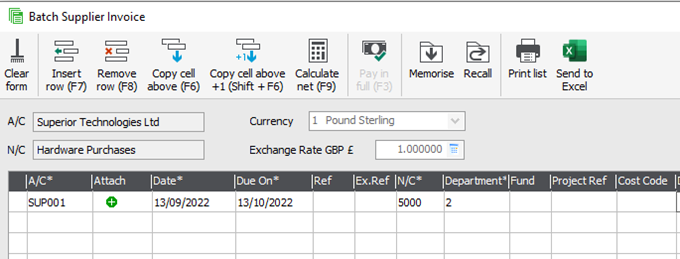
  1. Click Suppliers, then click Batch invoice or Batch credit as required.
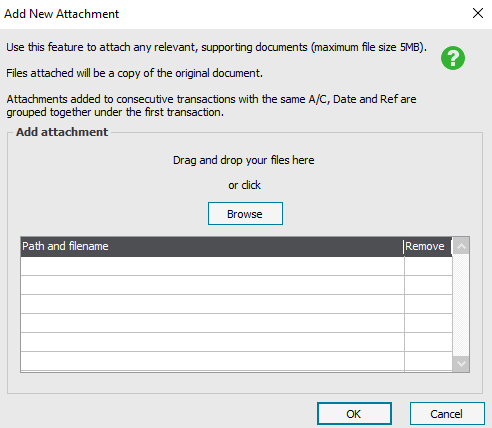
  2. Enter your batch invoice or credit as normal, but in the Attachment column, click the ‘+’ icon.
  3. Depending upon your access rights, you may either drag and drop your attachments into the Add New Attachment window, or click Browse to browse your attachment(s) into the Add New Attachment window, or click Browse to browse your attachment(s) in.  
  4. Once you’ve finished adding attachments, click OK, then click Save. Attachments are created as copies of the original documents and are stored in the Transaction Attachments folder for the relevant company.

Add further attachments to a transaction

  1. Click Suppliers, select the required supplier, then click Activity.
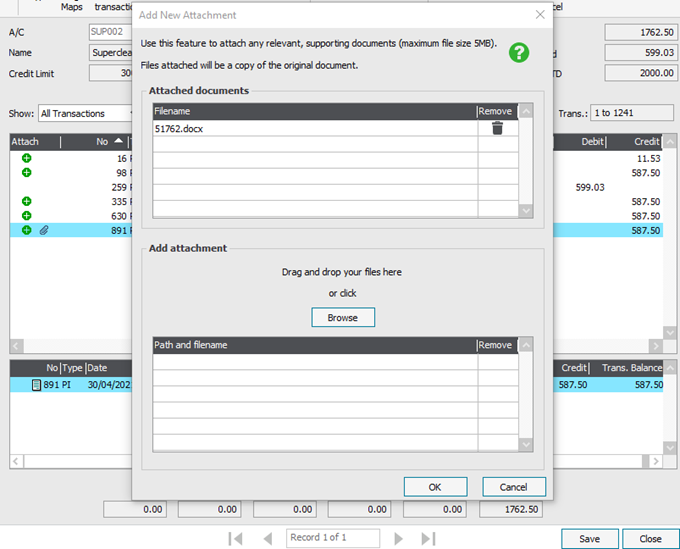
  2. Locate the transaction you want to add the attachment to then click the ‘+’ icon.
    Depending upon your access rights, you may either drag and drop your attachments into the Add New Attachment window, or to browse to your attachments, click Browse.
  3. Once you’ve finished adding attachments, click OK, then click Close. 

View a transaction attachment 

  1. Click Suppliers, select the required supplier, then click Activity. 
  2. To view an attachment, click the paperclip icon 📎 on the relevant transaction line.  

Delete a transaction attachment 

  1. Click Suppliers select the required supplier, then click Activity. 
  2. Locate the transaction you want to delete the attachment from then click the ‘+’ icon. 
  3. Click the icon for the attachment you want to delete. 
  4. Click OK, then click Close. 

To backup your attachments 

When you backup up your data, if you want to back up your attachments, click File, then click Back up and ensure the Transaction attachments check box is selected, then click OK. You can only back up attachments if the Data file check box is also selected. 

Further Information 

If you’d like to talk to our product experts about Sage 50 Accounting, or would like to book a demonstration, you can find more information here.

While Sage 50 can get the job done, if you’re looking for a smarter, cloud-ready accounting solution with more flexibility and modern features, it might be time to explore what BC Switch can do for you!
Read More